
How to Install Smarters Pro on FireStick
Since we are sideloading Smart PRO on FireStick, we first need to enable the Apps from Unknown Sources security option in FireStick Settings. Follow the steps below:
1. You must be on the FireStick home screen. Select FIND .
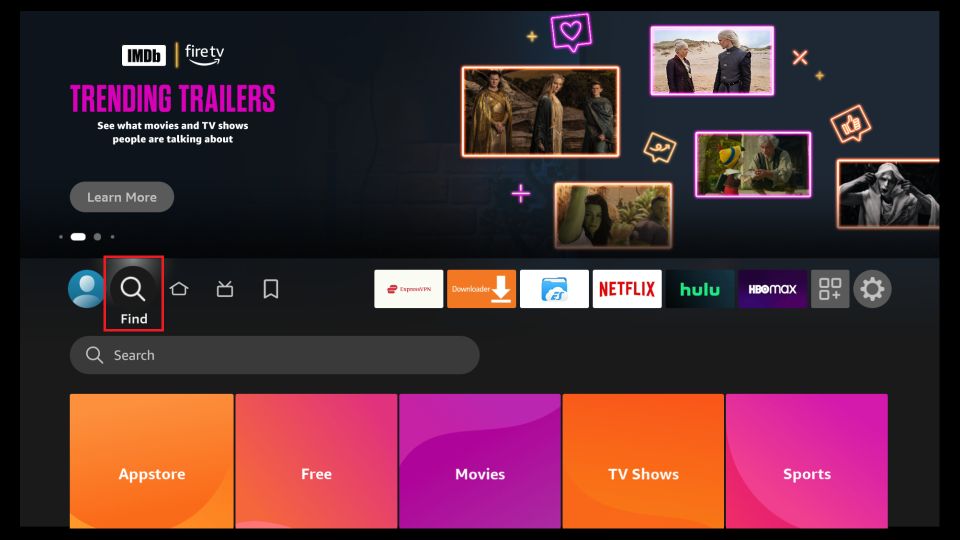
2. Now click on Search .
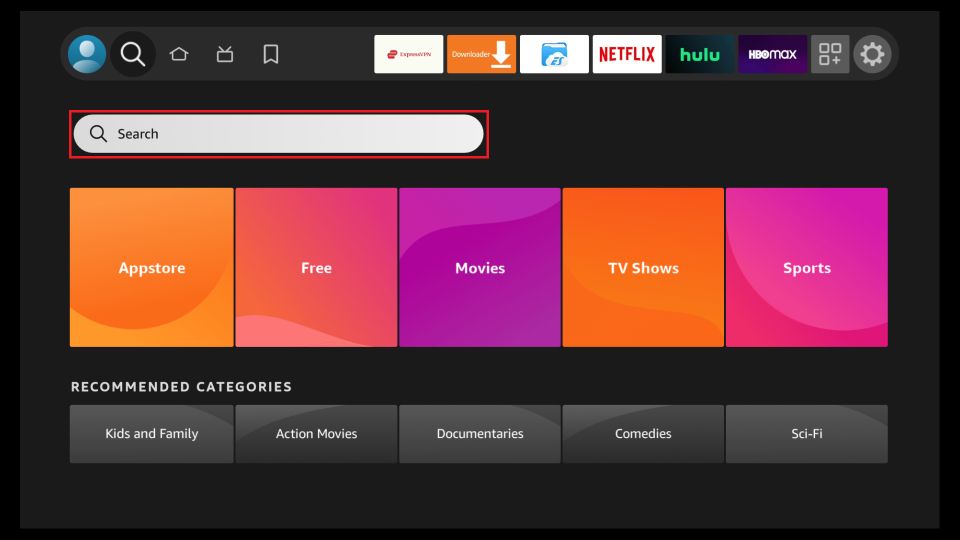
3. Search for the Downloader app in the search window . This is the app through which we load Smart on a FireStick. Follow the on-screen instructions and install this app. For detailed instructions, see the article
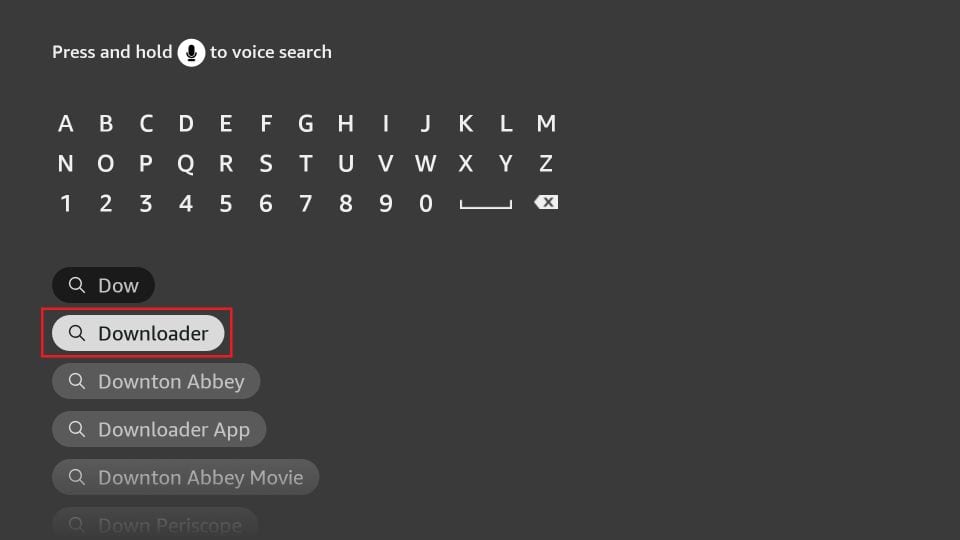
4. After installing the Downloader app, return to the home screen and select Settings .
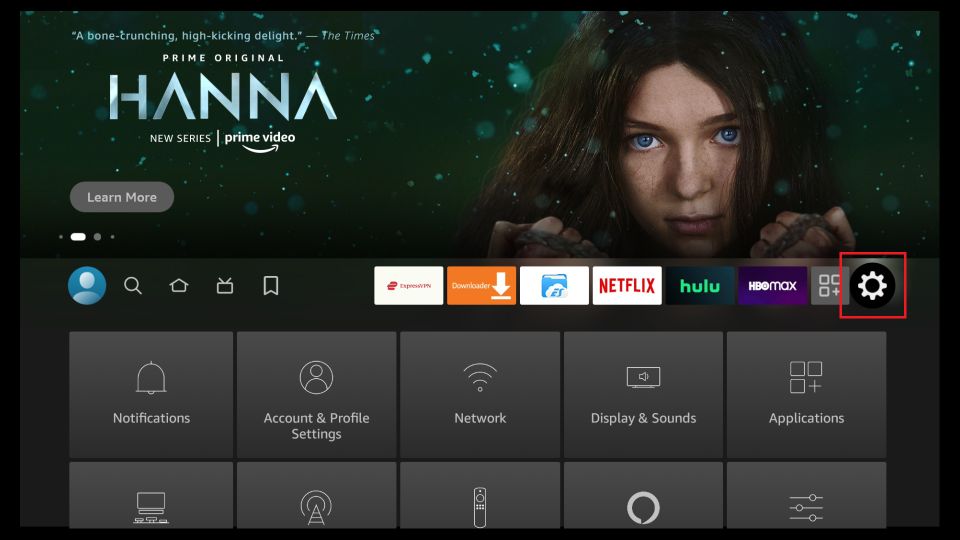
5. In Settings, go to My Fire TV option and open it.
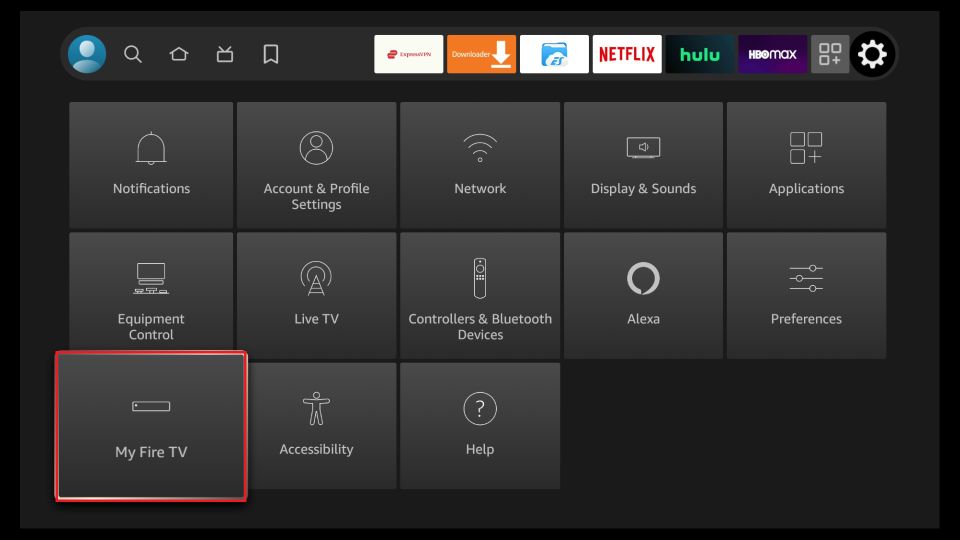
6. The next option you can access is Developer Options .
Now select the Fire TV Stick and click on it seven times to enable Developer Options.
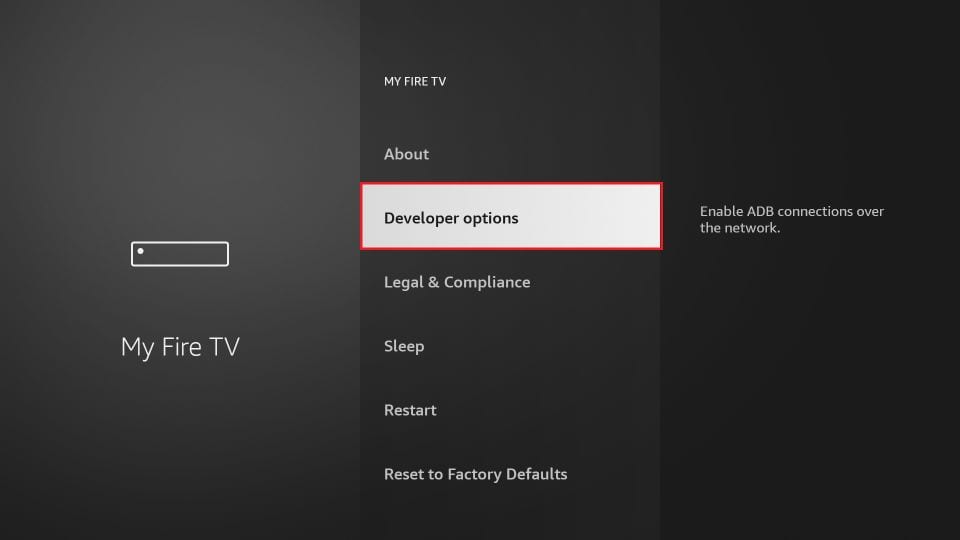
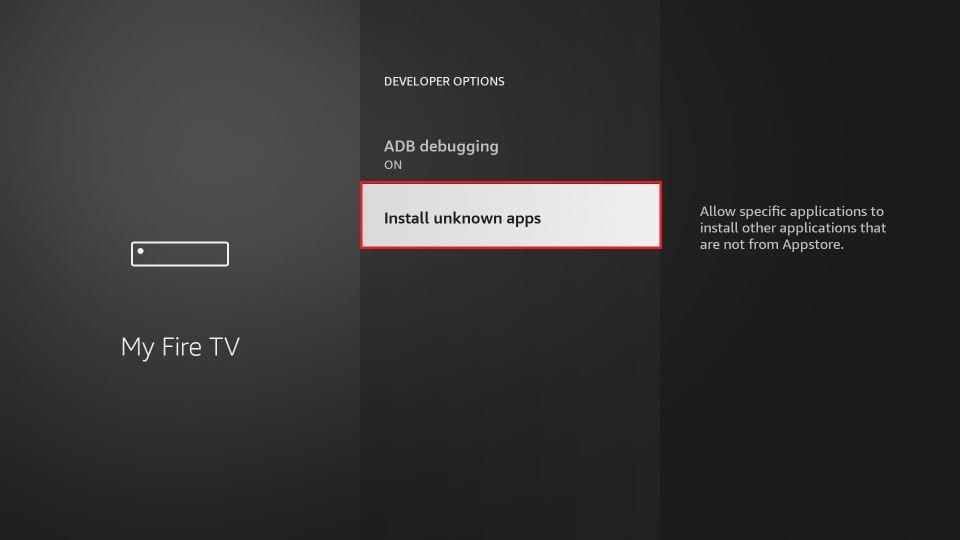
7. In the next window, click Install Unknown Apps .
Note: If you still have the older version of the FireStick UI, click Apps from Unknown Sources.
8. option Select Enable for the downloader app.
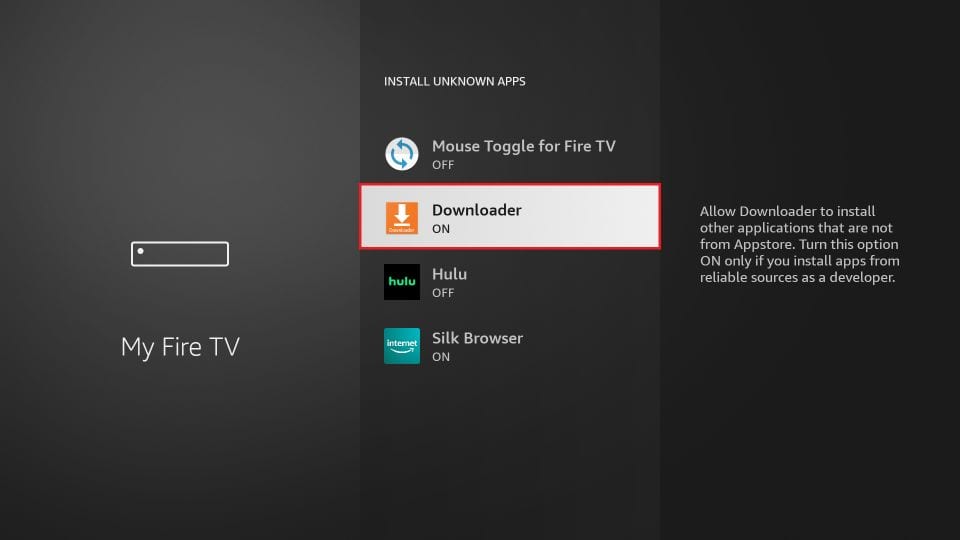
Once you have enabled apps from unknown sources, you can start installing Smart on FireStick. Here are the steps:
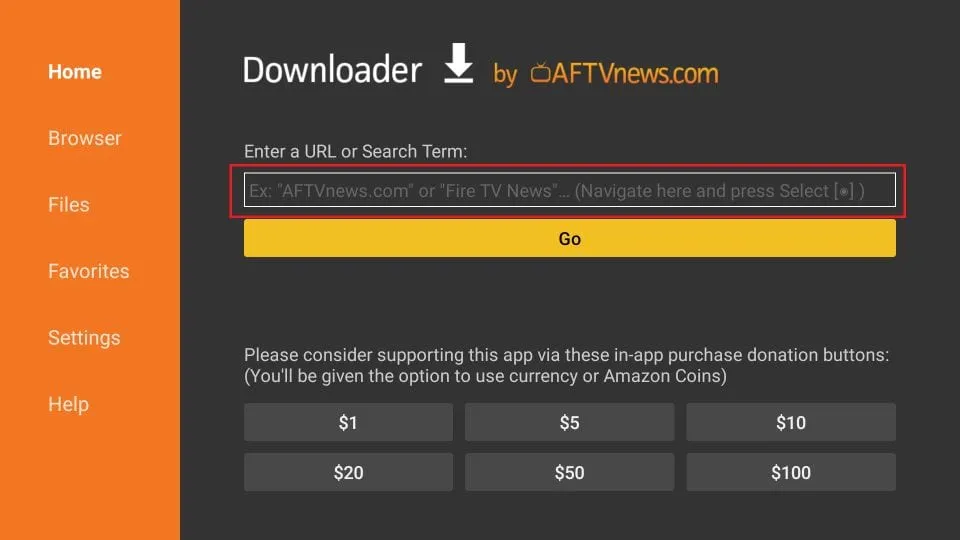
9. You can now open the Downloader app. When you run it for the first time, you will see a few prompts. Discard them by selecting the appropriate options. When the following screen of the app appears, click on the text box highlighted in the image below.
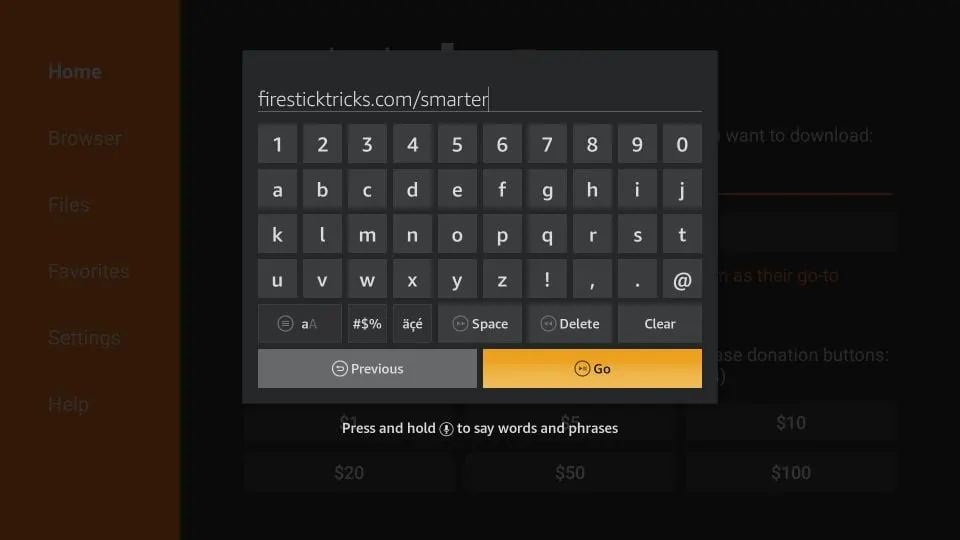
10. Go ahead and enter the following path in this window: https://www.firesticktricks.com/smarter
Note: You can also use the shortened version of the URL firesticktricks.com/smarter
Click GO
11. Wait a minute or two for the Smarter to download on your FireStick device
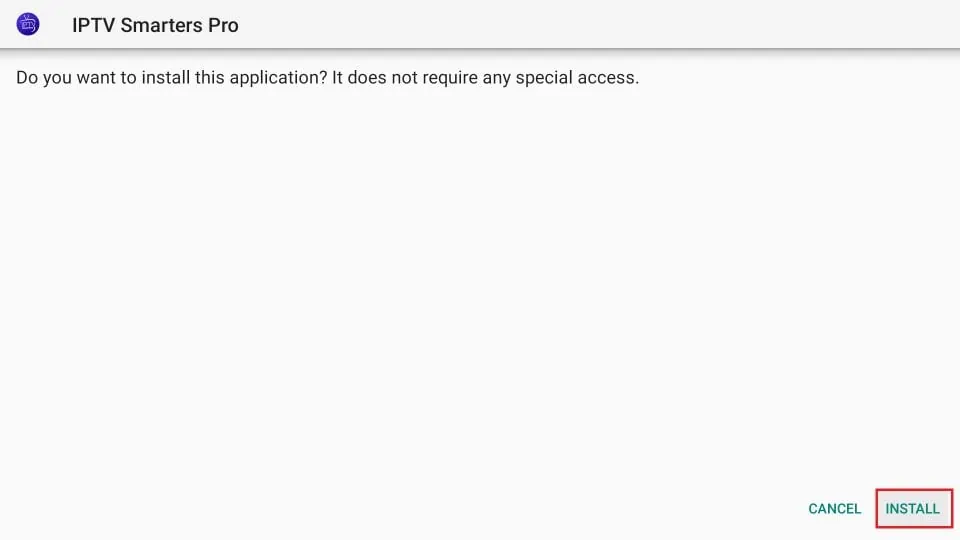
12. When the download is complete, the downloader app will run the APK file and the installation will begin
Click Install
13. Wait for the installation to complete
14. completed with the notification “App installed” The installation is
You can now click “OPEN” and start using Smarters
I recommend DONE so that you can delete the APK file first and save some space in FireStick storage selecting
15. Once you click DONE above, you will return to the downloader interface
Click Delete
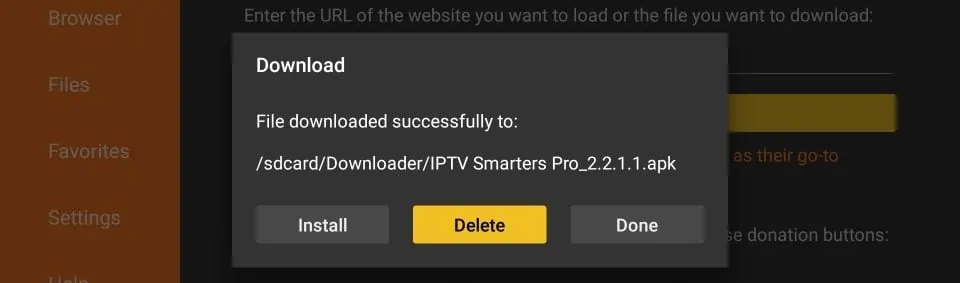
16. Click Delete again
Great! You now have the Smarters on FireStick.
How to Use on a FireStick
As I said before, does NOT have its own channels. It is simply an intermediary that allows you to stream channels that you have access to through the service providers.
Therefore, to use Smarters, you must have subscribed to at least one service.
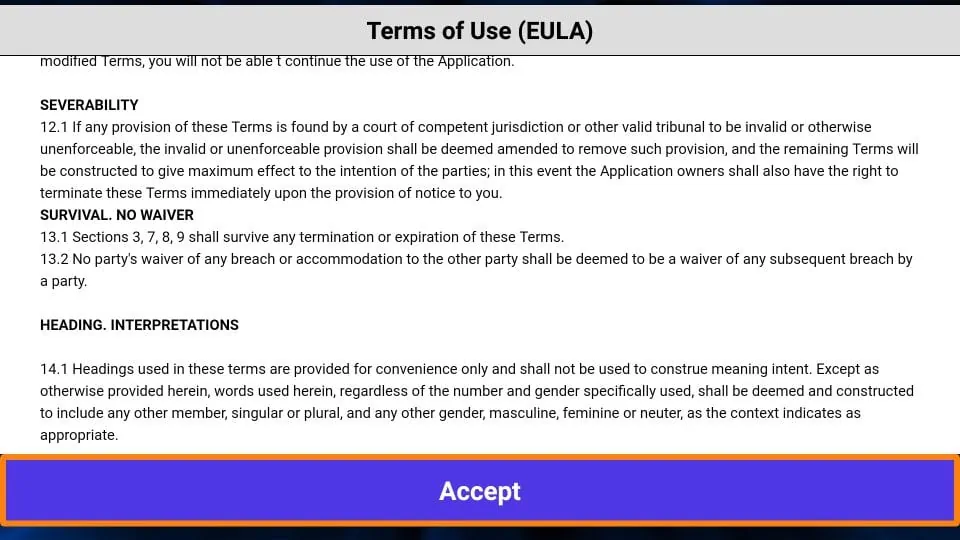
When you run the s app for the first time, Terms of Service are displayed in the first window. Scroll down and click Accept
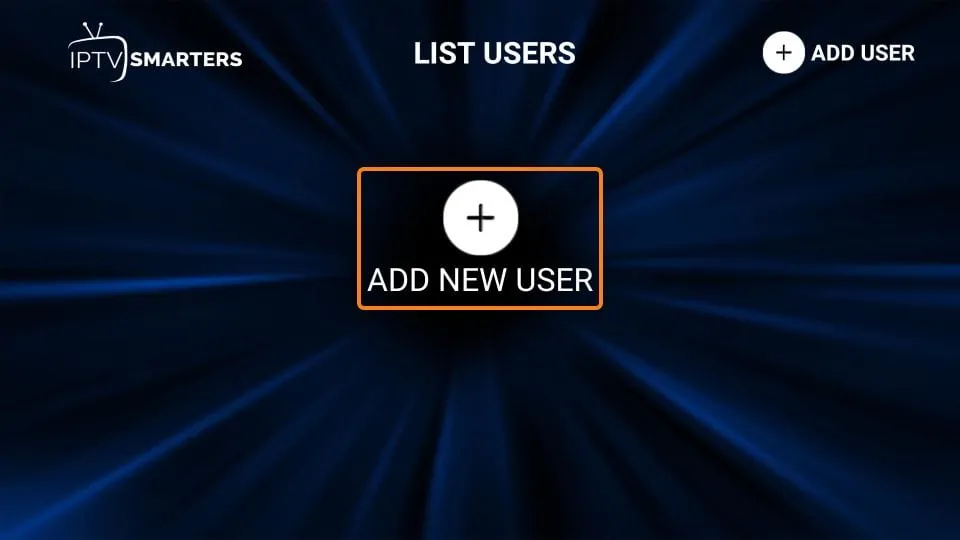
This is the window you will land in next. You need to start by either clicking ADD USER in the top right corner or clicking ADD NEW USER in the middle of the screen
Log in using the Xtream Codes API
M3U playlist URLs are often long and difficult to type into the app, especially when typing with the FireStick remote.
Therefore, I recommend using the Xtream Codes API instead. They are shorter and easier to type.
However, Xtream codes have been removed and I’m not sure if the API codes will still work
The Xtream Codes API will be emailed to you by your provider along with your M3U playlist URL. If you have not received this, contact your provider.
If you click on “Log in with Xtream Codes API” , the window in which you can enter your data will appear here:
Step 1 : First, download the Smarters app from Apple Store via and install the app on your iOS device.
Step 2 : Open the app after downloading.
Step 3 : In this step, select any name in the first field. In the second and third fields, enter the “ username ” and “ password ” of your M3U line as well as the server URL , which can also be found on your M3U line.
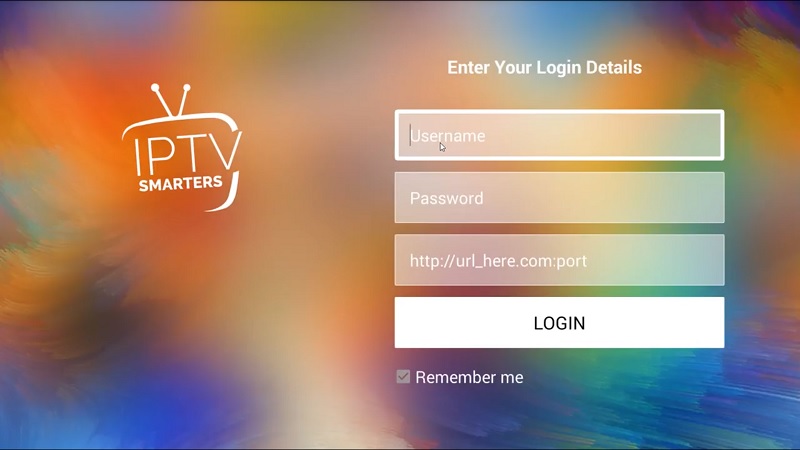
Schritt 4 : Klicken Sie nun auf „LOGIN“, um mit dem nächsten Abschnitt fortzufahren.
Step 5 : Now click on the “ Settings ” icon as shown by a red arrow in the image.

Step 6 “ General Settings ” and move on to the next section. : Now you need to select

Step 7 : Now you need to click on “ AutoStart on Boot ” and then click on “ SAVE CHANGES ”.

Schritt 8 : Klicken Sie nun auf das Symbol „ Live TV “, wie im Bild durch einen roten Pfeil dargestellt.

Step 9 : Now you need to select the channel group you want to watch and move on to the next section.

Step 10 : Now you need to click on the channel name and then in the last step, double click on the small screen to turn it into full screen.
How to Install Smarters Pro on a Smart TV (Samsung/LG)
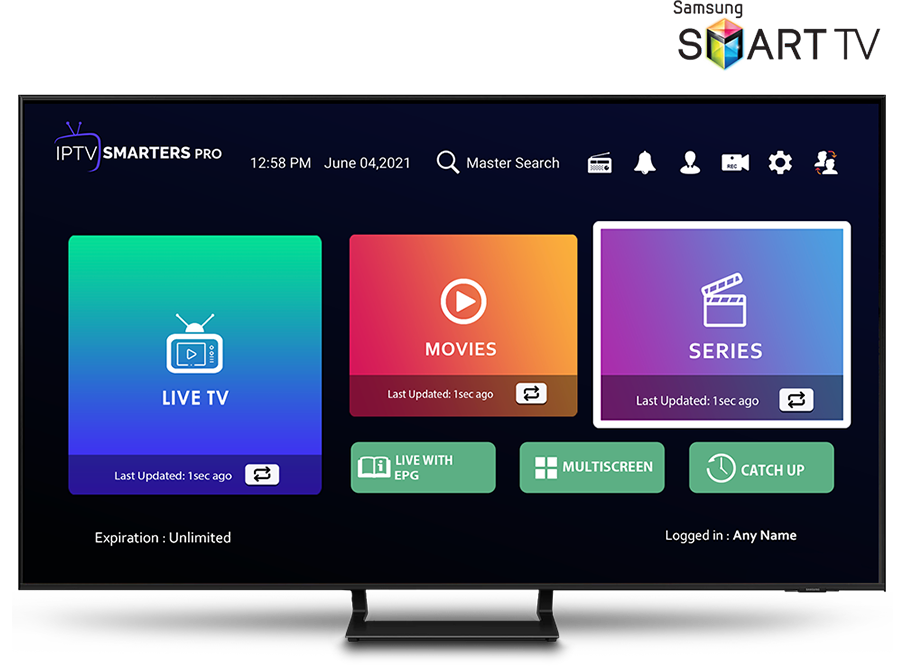
Smarters is an incredible video streaming player specially designed for end users who want the ability to watch Live TV, VOD, Series and TV Catchup on their . This video player app is easy to use yet highly efficient with a powerful player, attractive and very impressive layout and most importantly user friendly.
 Version : 1.0.4
 Compatibility : Compatible with all devices
– HOW IT WORKS
For Samsung Smart TV
Step 1 : Press the Smart Hub button on your remote control.
Step 2: Search for the Smarters Pro to install .
Step 3 : Log in with your subscription details e.g. B. Username, password and portal URL when using the application.
For LG Smart TV
Step 1 : Press the Home button on the remote control and go to the LG Content Store.
Step 2: Search for the Smarters Pro to install .
Step 3 : Log in with your subscription details e.g. B. Username, password and portal URL when using the application
How to Install FLIX App on Smart TVs (Samsung/LG)
Flix is a player like Smart but more stable that allows you to stream content. The application does not offer its own content, so you need a playlist or an m3u link, i.e. a
Flix is an interesting and stable application, even with large playlists, which is certainly worth using on your Smart TV.
Flix Features
Flix offers a variety of useful features. The features listed below can be found in the application settings.
Multiple Language Support:
Users can choose from over 17 languages. Just go to Settings and select “Change Language”.
Multiple topics:
Don’t like Flix’s default theme? You can choose a new one by going to “Settings” and then “Change Theme.”
External Player Support:
You can select MX Player and VLC Player as external players in the application. Go to Settings and then select External Players.
*This option is available for Android and iOS devices.
Adjust subtitles:
It is very rare for an player to offer subtitle customization. Flix is one of those few apps. Go to Settings and then Subtitle Settings to change the size, color, and background of your subtitles.
Other features of Flix include creating favorite lists, changing servers or lists as it supports adding multiple playlists, hiding specific content categories in channels or movies and series, etc.
Devices supported by Flix
Below is the list of devices on which you can install the Flix application:
- Samsung Smart-TV
- LG WebOS
- Android TV, Apple TV and Amazon Fire TV or FireStick.
Installing Flix is easy like any other application. Just go to the App Store and search for the name on Smart TV or Android TV and Apple TV.
The application is not in the Amazon Apps Store. You can install the app on your Fire TV device by typing in the downloader app or in the URL field of your device’s browser.
How do I set up Flix ?
Now we will show you how to set up your subscription to the Flix application via your m3u link.
1. Once the application is installed, launch it so that its Mac address appears on the screen.
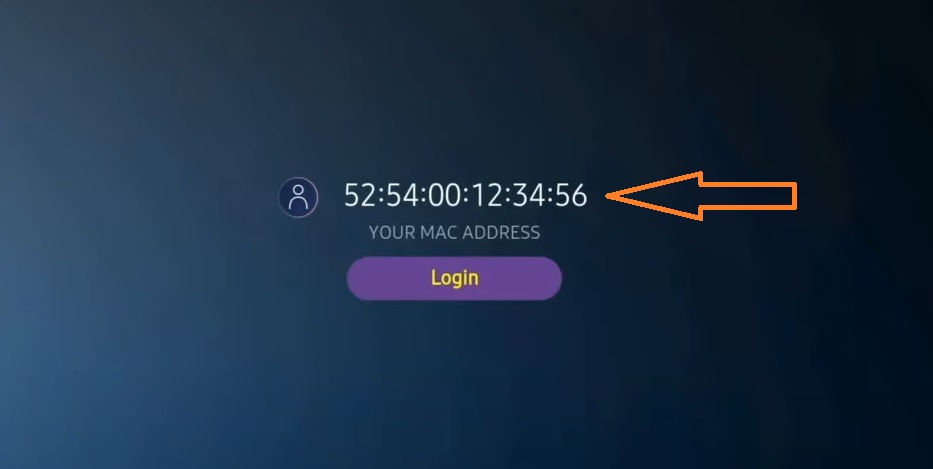
If you haven’t entered the Mac address, you can find it by navigating to “Settings” in the left-hand menu and scrolling to “User Account” in the next menu.
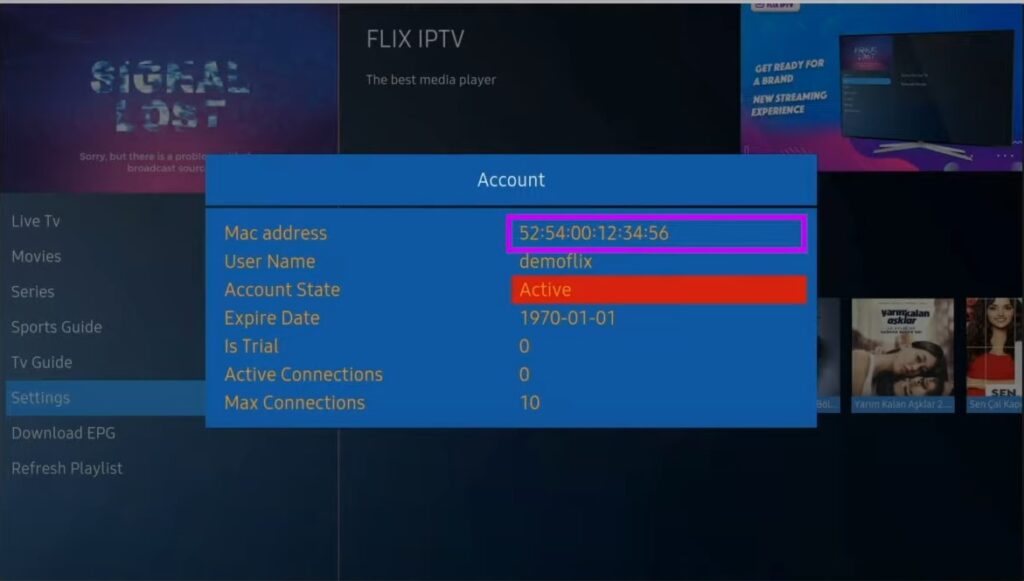
2. Go to the link
3. Enter the requested information, Mac address and your M3U link, then click Submit.
4. The final step is to restart the application or refresh the list in Settings > Change Playlist. A window will appear asking you to reload the list. Click OK”.
How do I activate Flix ?
Flix is like other applications for Smart TV ( SET , NET , Smart STB, …) and offers a 7-day free trial. After that, you have to pay EUR 7.99 to activate it on a single device or TV for life.
Here is the link to the activation page:
Our opinion on Flix
Flix is one of the best applications. It has a number of useful and rare features. Follow the above steps to use it especially for Smart TVs.
How to Install XC Player on Android Devices
1) Unlock your Android device and go to the Play Store (Google Play) .
(2) Search Google Play Store for XC Player in
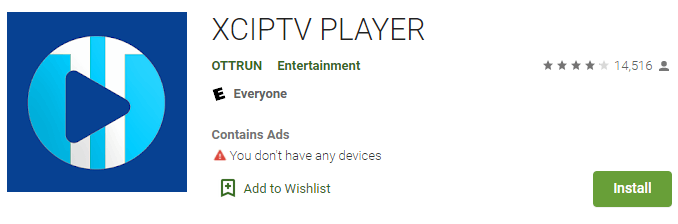
(3) Select “Install” to install XC Player on your Android device.
(4) Launch the player.

(5) You have successfully installed XC APK on your device!
Enter your login details for the service and click “Login” when finished.
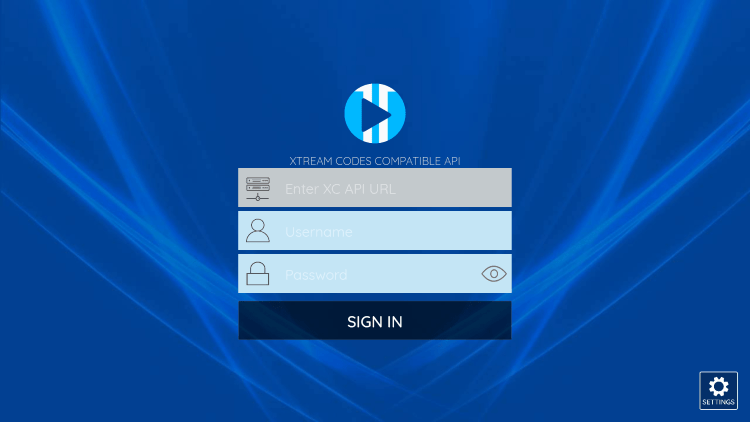
(6) Done! Enjoy
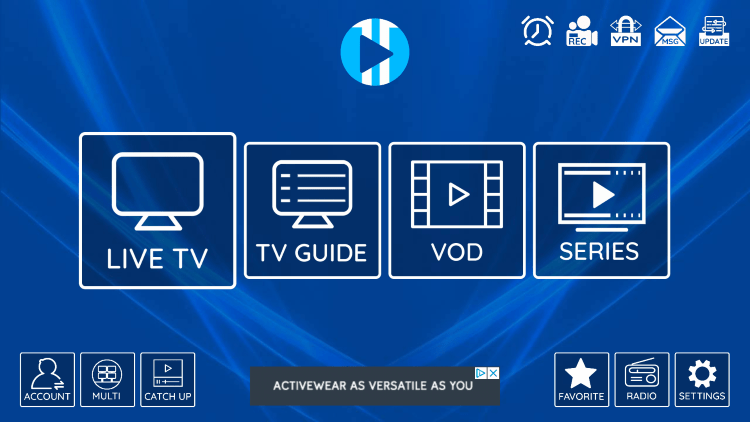
This tutorial will guide you through simple and effective steps to install your Mag (250/254/256…).
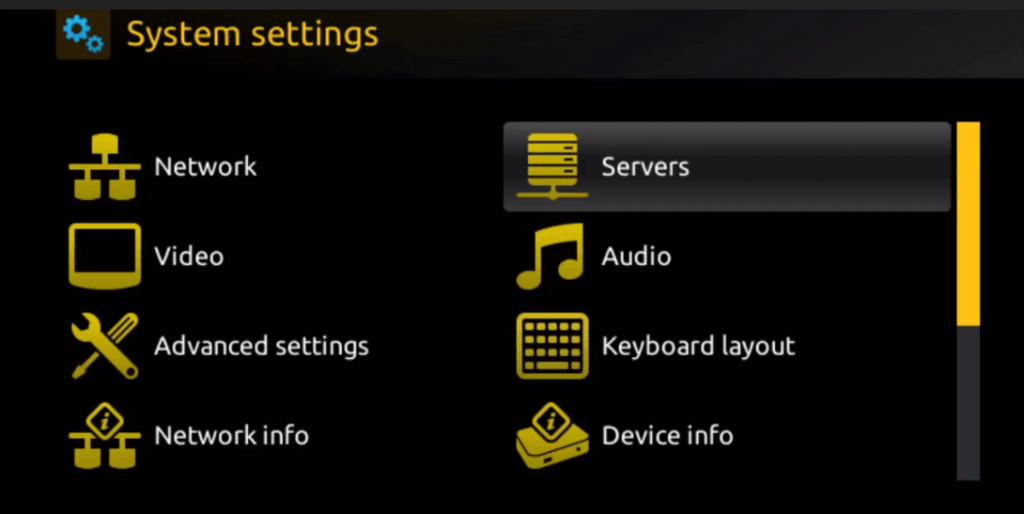
Step 1 : When the box loads, the main portal screen will appear. Then click on “Settings” and press the remote control button “SETUP/SET”.
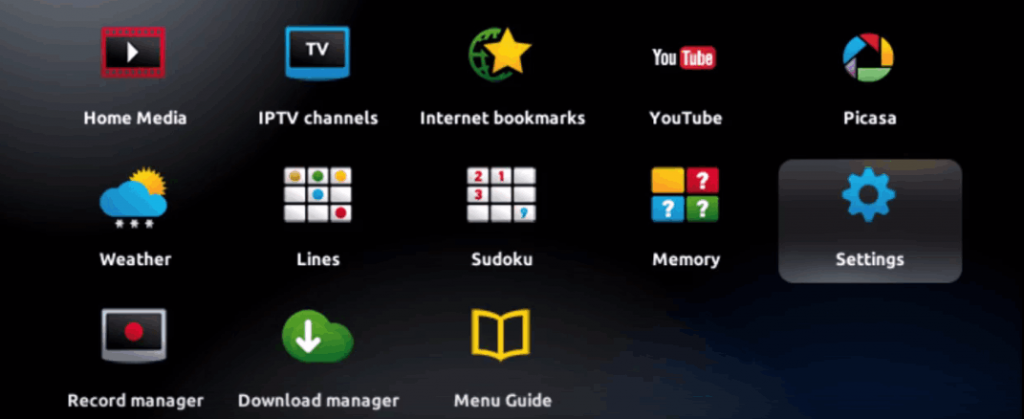
Step 2 : Then click on “System Settings” and click on “Server”.
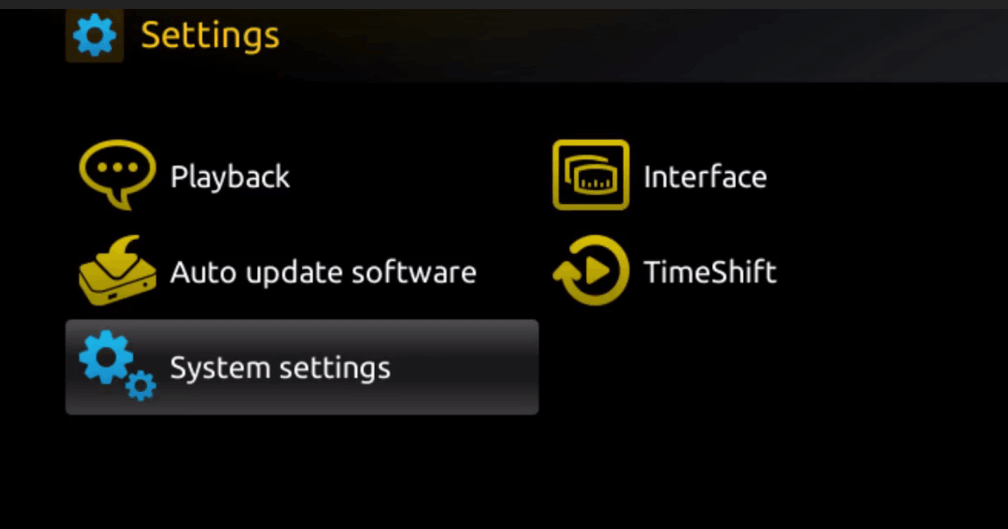
Step 3: Click “Server”.
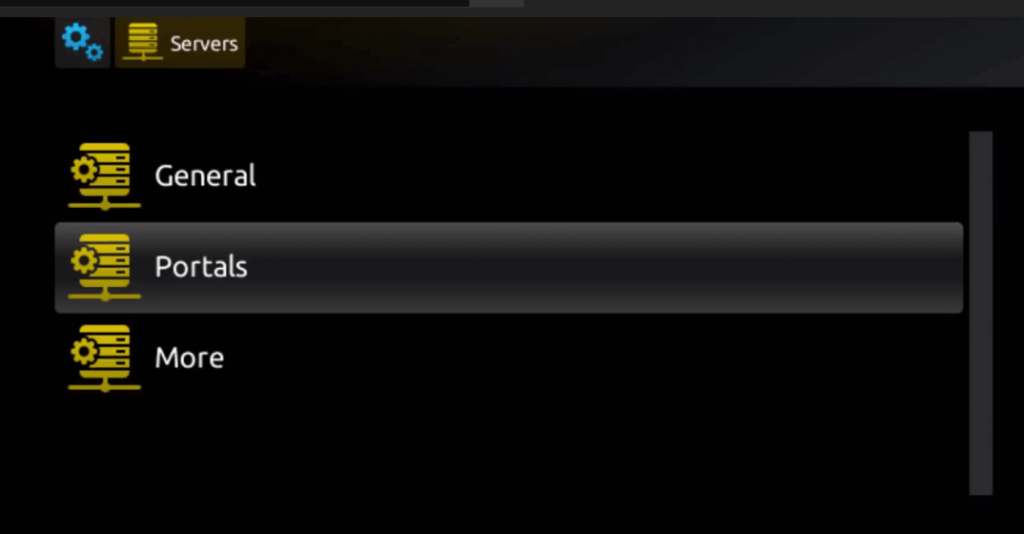
Step 4 : Select the “Portals” option and press on it.
Step 5: Enter a portal name in the “Portal 1 Name” line and the portal URL in the “Portal 1 URL” line.
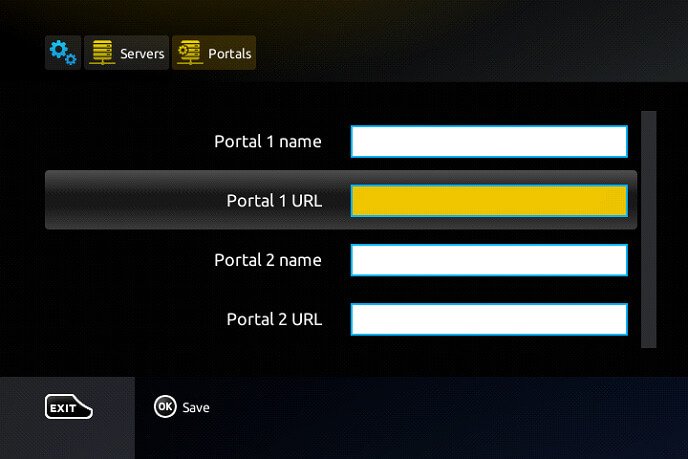
with your order us the MAC address Therefore, to activate our subscription on your MAG box, you must send , which you can find on the label behind the box. Activation is completely remote. Immediately after activation we will send you a URL link to You need to create your PORTAL as in the photo below:
Step 6 – When finished, select “OK” and click to save the changes.
Step 7 – Click “EXIT” on the remote control after the settings are saved.
Step 8 – You then need to restart the box. Select the “OK” option to apply the changes.
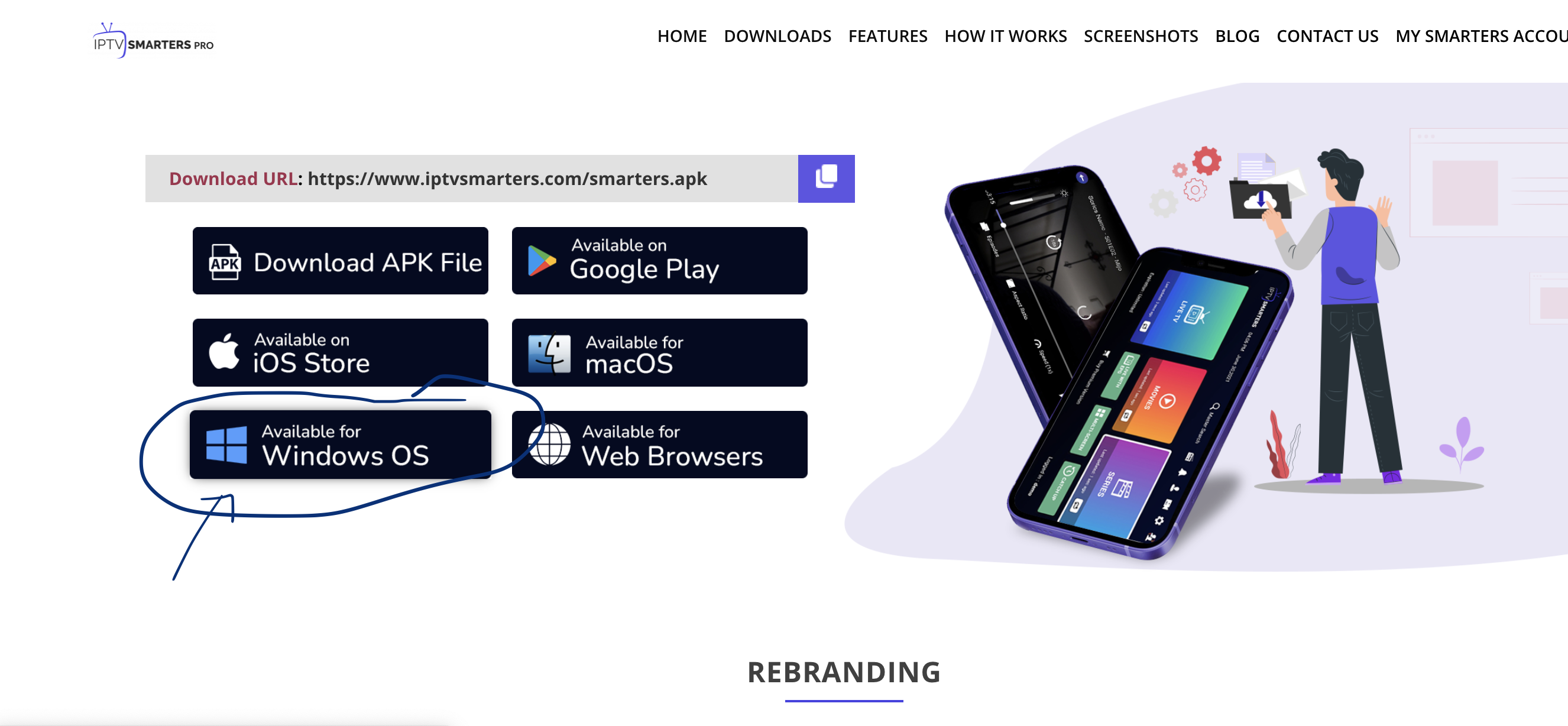
How to install Smarters pro on Windows?
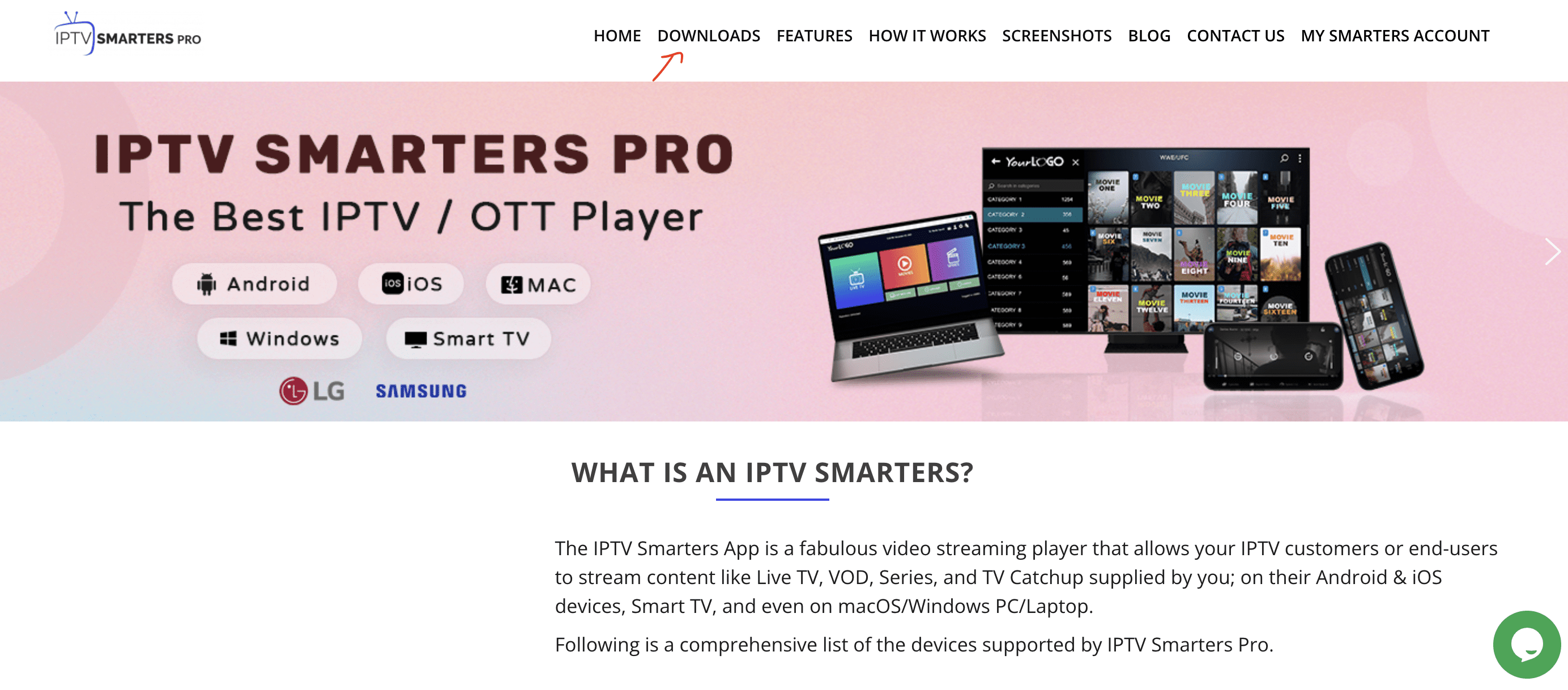
- Go to the search engine and type “ Smarters Pro ”.
- Then open the website
- Select “Downloads” from the menu

- Download the new version of Smarters Pro.

- After the file download completes, click on the executable file
- Windows will ask you for permission to open this file. Select “Yes”
- The file will now begin the installation process. This should take between – and two minutes
- Once the installation is complete, launch the Smarters program. Click Add New User and select Sign in with Xtream Codes API . Add your login details (username, password and portal URL) for your service.
- You can now start watching content on Smarters Pro!
1. This is instruction For Enigma 2/ Linux installation, you need install putty to use it.
Settings > Setup > System Network Device > Setup Adapter > Settings
And get your IP address it starts with 192.168….
2. Go to your windows PC and Download Putty Software.
3. Open Putty
4. Add your IP address of your Device.
5. Add Port 23
6. Click on open
7. Your default login and password are root
8. Copy your line ( you will get it after you order your subscription )
9. RIGHT CLICK MOUSE BUTTON after you enter your line press ENTER
10. Type reboot and your device will restart.
MyTVOnline :
After the box has turned itself on after the upgrade you will need to click on the My TV online box.
Now you should see an image like the one below.

Note : At the top of the page like the above picture you see a MAC or ID with this format for example 00:1a: … , You need to deliver it to your provider to be added on the panel.
Now once you have done the above you will need to click on edit which will pop another box up on the screen where you will enter this below.
Portal Nickname : Give it a name you like
Portal URL : ( Providers call it Mag Portal)This section is provided to you by the provider. You can get the Portal URL from us by , or if you have already received the service, the Portal URL(Named Mag Portal ) has been emailed to you. You can also log in to your user panel and view your information and edit your package..
Login Required? NO
User ID : Leave it empty
User Password : Leave it empty
Now click on OK…
It’s done.
If you have just updated your device, you will see MyTVOnline 2 in your menu.

If this does not appear in your menu, you will need to update your device.
This is how the device is updated.
Step 1 : Go to the Software update option from the menu

Step 2 : Wait for the program to update. This process may take 4 to 5 minutes.

Step 3 : Select the Reboot Now option

Step 4 : Wait for the device to reboot. You may have to wait a few minutes

Now that your device has been updated, you should be able to see MyTVOnline 2 from the menu
After selecting MyTVOnline 2, such a window will appear for you

As you can see in the picture, you have two options.
One, Add Portal
Two, Add m3u Playlist
Fortunately, us supports both methods.
Add Portal method :
select Add Portal

In the window that opens, you must enter your information

Portal Nickname : Give it a name you like
Portal URL : This section is provided to you by the provider. You can get the URL from us by , or if you have already received the service, the URL has been emailed to you. You can also log in to your user panel and view your information and edit your package.
Is the login required? Check it
Username and Password : Use the username and password that the provider delivered to you
Click “Connect”
Note : There is another way in order to use the portal section with providing the mac address and using the mag portal . But it is not recommended in MyTVOnline 2.
If you prefer to add your m3u playlist(Hard way for using!)
select Add m3u Playlist

In the window that opens, you must enter your information
Portal Nickname : Give it a name you like

Playlist URL : ( Providers call it m3u)This section is provided to you by the provider. You can get the Playlist URL from us , or if you have already received the service, the Playlist URL(Named m3u ) has been emailed to you. You can also log in to your user panel and view your information and edit your package.
Playlist VOD URL / Playlist XML TV EPG URL : optional and not required for our servهce
Click “Connect”
MyTVOnline 3 : As It has been mentioned this app is available for Formuler z11 Pro Max and later versions and it is pretty easy to use
First you should select MyTvonline 3 app

There are three ways of using this app but the best practice is using xtream codes that we will explain how to use it in this tutorial
Second step you will see the window like the blow picture

You need to enter the Info
Portal Name : Give it an optional name.
Portal URL : Should be prepared by the service provider
Login required : Switch this section on (After this step, the username and password fields will appear )
Username and Password : Should be provided by provider
Click “Connect”
Accordion Content